This is the full login guide. The homepage gives only a short summary of login and links here for the detail. The Pause Time pillar covers pausing and resuming a session that is already paid for. This page covers getting into the portal in the first place, paying through it, logging in on different devices, and fixing the login problems that stop the portal from opening at all.
Answer: Piso WiFi login usually means opening the customer portal at 10.0.0.1, paying for a session, and starting to browse. It does not usually mean creating an account or remembering a username and password.
What Piso WiFi Login Means for a Customer
For a customer, login is a session login, not an account login. You join the machine WiFi network, the portal opens, you pay, and the machine gives your device timed internet access. When the timer ends, the session ends. The next time you pay, you start a new session.
That is different from a home router login, a coffee shop account, or a mobile app account. If a Piso WiFi portal asks you for a username and password before you have paid, check what page you are on. You may have opened the admin panel by mistake, or you may be on a different hotspot that does require an account. The admin panel is covered briefly at the end of this page, with a link to the full Admin Login guide, so this page does not repeat that guide.
How to Log In to Piso WiFi in 5 Steps
Use these steps in order. Skipping the network step is the most common reason the portal will not load.
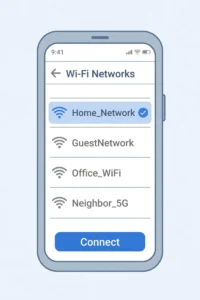
Step 1: Join the correct WiFi network
Open WiFi settings and select the network name shown on or near the machine. The network name is also called the SSID. Check the spelling carefully. A nearby network with a similar name may belong to a different machine, a home router, or a shop next door. If you join the wrong network, 10.0.0.1 will open a different portal, or nothing at all.
If the network asks for a WiFi password before you even reach the portal, that password is set by the operator and should be shown on a sign near the machine. Ask the operator if it is not shown. Do not confuse that WiFi password with an admin password. One lets you join the network. The other lets an owner change machine settings.
Step 2: Wait for the captive portal to open
A captive portal is the login page that appears before full internet access is allowed. On most phones, it opens on its own a few seconds after you join the network, often as a notification that says “Sign in to WiFi network” or a browser page that opens automatically.
Tap that notification if it appears. Do not dismiss it and then wonder why the internet does not work. Dismissing the portal notification does not log you in. It only hides the page.
Step 3: Open 10.0.0.1 manually if the portal does not open
If no portal appears within about 30 seconds, open a browser and type http://10.0.0.1 in the address bar. Type it in the address bar, not in the search box. Typing it into a search box will run a web search for the address, which will fail because you are not yet online.
Use http, not https, at the start. The portal is a local page on the machine. It is not a public website, so it does not have a public security certificate in the usual case. Your browser may show a warning about an insecure connection. That warning alone does not mean the machine is fake, but you should still avoid entering banking details or work passwords on any public WiFi portal. Use https websites and apps for sensitive tasks once you are online.
The address 10.0.0.1 is a private IP address. It only works while you are connected to that machine network. The same address points to a different machine on every network, because it is local to each network. It will not work from mobile data, from home, or from another WiFi network.
Step 4: Pay for your session through the portal
The portal shows the payment options for that machine. Common options are:
- Insert coins into the coin slot and confirm the payment on the portal.
- Enter a voucher code, also called a WiPass code on PisoFi machines, if you bought a printed code.
- Pay with GCash or Maya where the machine and platform support e-wallet payment.
After payment, tap the option to go online, confirm, or start the session, depending on the label. Check the timer before you start browsing. If the timer shows zero, or if it does not start, do not keep inserting coins. Note the amount and the time, take a screenshot if you can, and tell the operator. The voucher and payment details are covered in full in the Voucher guide and the Rates guide, which are linked at the end of this page.
Step 5: Check that you are actually online
Open a normal website in a new tab, not only the portal page. If the website loads, you are logged in. If only the portal loads, your session may not have started yet, or your payment may not have been confirmed. Go back to the portal tab and check the timer and the session status.
How to Find the Correct Portal Address When 10.0.0.1 Does Not Work
Most Piso WiFi machines use 10.0.0.1, but not all of them do. Some machines use a different gateway address, set by the operator or by the platform. Operator reports also mention 10.10.0.1 and, for some router based setups, 192.168.1.1, but do not guess those addresses. The gateway field on your own device is the correct address for that machine. The gateway address is the address of the router or machine that serves the portal. You can find it on your device without guessing.
On Android
Open Settings, then WiFi, then tap the connected Piso WiFi network to see its details. Look for a field labelled Gateway, Router, or IP address details, depending on your Android version. The gateway value is the portal address to type into your browser, with http:// in front of it. If the field shows a different address from 10.0.0.1, use that address for that machine.
On iPhone
Open Settings, then WiFi, then tap the small “i” icon next to the connected Piso WiFi network. Look for the Router field. That value is the gateway address. Type it into Safari with http:// in front of it if the portal did not open on its own.
On a laptop
On Windows, open the network details for the connected WiFi network and look for Default Gateway. On Mac, open System Settings, then WiFi, then Details for the connected network, and look for Router. Use that value in the same way.
If the gateway field is blank, or if it shows an address that still does not load, you may not be fully connected to the network. Forget the network, rejoin it, and check the gateway again. A device that shows “Connected, no internet” before login is normal on a captive portal network. That message means the device is waiting for portal login, not that the machine is broken.
Piso WiFi Login on Android, iPhone, and Laptop
The login steps are the same, but the settings that block the portal are different on each device.
Login on Android
Android checks for a captive portal when you join a network. If that check is blocked, the portal may never appear. Three settings cause most Android login failures.
First, Private DNS. If Private DNS is set to a hostname, it can block the local portal. Set Private DNS to Off or Automatic while you log in. You can change it back after the session starts if you prefer, but keep it off if the portal keeps failing.
Second, mobile data. If mobile data stays on, Android may keep using mobile data for browsing and never show the WiFi portal. Turn off mobile data until the portal opens and the session starts, then leave WiFi on for the session.
Third, VPN. A VPN can route traffic away from the local portal and hide it completely. Turn off any VPN until you are logged in and browsing, then turn it back on only if you need it for sensitive work, and check that the portal timer still works.
Login on iPhone
iPhone also checks for a captive portal, and it shows a login sheet when it finds one. If that sheet does not appear, open Safari and type http://10.0.0.1, or the gateway address from the Router field, in the address bar.
Check Private WiFi Address for that network if login keeps failing after a previous session. A private address is good for privacy, but on some machines it can complicate session matching. Do not change the setting in the middle of a paid session and expect the old session to return. Set it before you pay if you are troubleshooting a machine that repeatedly fails to recognise your device.
Also check Low Data Mode and any content blocker that may block local pages. A content blocker is unlikely to block the portal itself, but a VPN or a private relay setting can. Turn off VPN and private relay until login succeeds.
Login on a laptop
On a laptop, the most common blocker is a browser that forces https, a cached redirect, or a VPN client that starts on boot. Open a fresh incognito or private window and type http://10.0.0.1 in the address bar. If that works, the problem was cache or an extension in your normal window, not the machine.
On a laptop, also check that WiFi is actually connected to the Piso WiFi network, not to a remembered home or office network with a similar name. Laptops often rejoin a known network automatically, even when you are standing next to a Piso WiFi machine.
Piso WiFi Login by Payment Type
Login looks slightly different depending on how you pay, because the portal shows different fields for each payment type.
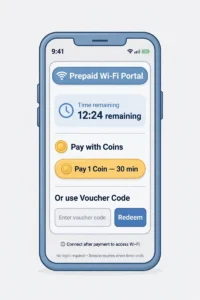
Coin login
Coin login is the simplest case. Join the network, open the portal, insert coins, confirm on the portal, and check the timer. The coin slot must be calibrated for Philippine coins. If a coin is rejected, try a clean coin of the same denomination, and do not force a bent or dirty coin into the slot. If a coin is accepted but no time appears, stop and tell the operator with the amount and time. Repeated coin inserts for the same session make refunds harder to sort out.
Voucher login
Voucher login uses a code instead of coins. Join the network, open the portal, find the voucher or WiPass field, enter the code exactly as printed, and confirm. Check for common typing errors: the letter O versus the number 0, the letter I versus the number 1, and extra spaces at the start or end of the code. If the code is rejected, check whether it has already been used, whether it has expired, and whether the machine accepts vouchers at all. Some machines are coin only, and a voucher field will not appear on them.
Voucher timing matters. On many systems, the timer starts when you redeem the code, not when you buy it. That is useful if you want to buy a code now and use it later. Confirm the rule with the operator before you buy a large voucher, because it varies by platform and by operator setting. Full voucher rules, including expiry, transfer, and WiPass types, are in the Voucher guide.
GCash and Maya login
Where supported, the portal shows an e-wallet option. The usual flow is: select GCash or Maya on the portal, enter the amount or the rate you want, confirm on your e-wallet app, and return to the portal to check the timer. Do not close the portal tab during the e-wallet step. If the payment succeeds in the e-wallet app but the portal shows no time, take screenshots of both the e-wallet receipt and the portal timer, and tell the operator at once. Do not pay a second time until the operator has checked the session list.
E-wallet login may need a Philippine registered number. Travellers without a Philippine number should use coins or vouchers, which do not need a local mobile account.
How to Log Out, Switch Devices, and Use a Second Device
Piso WiFi sessions are normally tied to one device. That is a design choice, not a bug. It is how the machine tracks time and prevents one payment from being shared across many phones.
How to log out
Most portals have no formal logout button for customers. Ending a session usually means letting the timer run out, or closing the portal and disconnecting from WiFi. If you want to stop a session early, pause it if the machine supports pause, as explained in the Pause Time pillar. Do not assume that disconnecting from WiFi ends the timer. On many systems, the timer keeps counting while you are disconnected, unless the session is paused or the operator has set a disconnect pause rule.
Can I log in on a second device with the same payment?
In the usual case, no. A coin payment or a voucher code creates one session for one device. Using the same voucher code on a second device will usually fail, because the code is already redeemed. A second device needs its own payment. PisoFi lists live transfer of time between users on some setups, but transfer is a separate operator enabled feature, not a general login right. It is covered in the Voucher guide, not repeated here.
What if I need to switch phones mid session?
If you must switch phones, tell the operator before the old session expires. The operator may be able to transfer time, extend time, or check the session list from the admin panel, depending on the platform. Do not expect an automatic transfer. The machine matches sessions by device, as explained in the Pause Time pillar, and a new phone looks like a new customer to the system.
Piso WiFi Login Problems, With Deeper Fixes
The homepage lists quick fixes. This section gives the deeper login checks. Pause specific problems are in the Pause Time pillar. Coin, speed, and hardware problems are in the Troubleshooting guide. This table stays on login only.
| Problem | Deeper check | What to do next |
|---|---|---|
| Portal never appears after joining WiFi | Captive portal check blocked by VPN, Private DNS, or mobile data | Turn off VPN, set Private DNS to Off or Automatic, turn off mobile data, then reopen http://10.0.0.1 in a fresh browser window |
| 10.0.0.1 loads a search page instead of the portal | Address typed into the search box, not the address bar | Type the address into the address bar at the top of the browser, with http:// in front of it |
| Browser says the connection is not private | Portal served over http, or https forced by the browser | Use http://10.0.0.1 in an incognito window. Do not enter banking details on the portal itself |
| Portal opens, but no payment button appears | Session already active, voucher mode only, coin mode only, or a platform setting | Check the timer. If a session is already active, use it or wait for it to end. If no session is active, ask the operator which payment mode that machine uses |
| Voucher code rejected | Typing error, code already used, code expired, or voucher disabled | Check each character, check expiry, then tell the operator with the code and any receipt |
| Coin accepted, but no time appears | Coin slot calibration, portal not confirmed, or a second session replaced the first | Stop inserting coins. Note the amount and time, take a screenshot of the portal, and tell the operator |
| Connected, but no internet after payment | Session not started, ISP down, or machine down | Check the portal timer. If the timer is running but no website loads, check whether other customers are affected, then tell the operator |
| Login works on one phone, but not on another | Private address change, different network joined, or a cached portal on the working phone | Join the exact network name on the failing phone, forget and rejoin it, and open the gateway address from the Router or Gateway field |
| Portal asks for a username and password | You opened the admin panel, or you joined a different hotspot | Go back to http://10.0.0.1 without “/admin”. If the page still asks for a username, you are not on a standard customer portal. Ask the operator |
| Redirect loop, portal keeps reloading | Stale cache, a browser extension, or a VPN intercepting the portal | Try an incognito window with VPN off. If the loop continues on two devices, tell the operator, because the machine portal may need a restart |
Is the Piso WiFi Login Page Safe?
The customer portal is a local page, not a public website. Treat it like a shop counter, not like a bank. Pay only the amount for the session you want. Do not enter an admin password, a banking password, or a social media password into a Piso WiFi portal. A real customer portal does not ask for those.
Watch for a fake portal sign. If the network name does not match the sign on the machine, if the portal asks for personal details unrelated to payment, or if it asks you to download an app to log in, stop and ask the operator. Do not download an app that promises to unlock login, extend time, or bypass a limit. Those claims are not part of any official platform feature list checked for this guide.
For sensitive browsing after login, use https websites and apps. The operator can see connection metadata, such as which devices are connected and how much data they use, even if they cannot see the content of https traffic. That is normal for any shared WiFi, not specific to Piso WiFi.
Customer Login Versus Admin Login: The Short Version
This section is a trailer only. The full admin steps, default credentials by build, first login password change, and admin troubleshooting are in the Admin Login guide. They are not repeated here, to keep one authority page per topic.
| Page | Address | Who uses it | What it is for |
|---|---|---|---|
| Customer portal | http://10.0.0.1 | Customers | Pay, check the timer, pause if enabled, browse |
| Admin panel | http://10.0.0.1/admin | Owners and admins only | Set rates, check sales, manage users, set pause, print vouchers |
If you are a customer and you land on the admin page, go back to the plain address. If you are an owner and you land on the customer page, add “/admin” to the address while connected to the machine network. Never share admin credentials with customers, and change default admin passwords on first login. The Admin Login guide gives the full first login checklist.
First Session Checklist: Before You Walk Away From the Machine
Use this checklist on your first session, after the 5 login steps above, so a small mistake does not cost you a payment. It is a checklist, not a second set of login steps, and each item points back to a step already covered on this page.
- Network: confirm you joined the machine WiFi network, not a nearby home network or a copied network name, and that mobile data and VPN are off while the portal loads.
- Portal: confirm the portal opened at 10.0.0.1, or at the gateway address shown on your device if 10.0.0.1 does not load, and that the portal shows the machine rates before you pay.
- Payment: pay a small amount first, then confirm the portal shows a timer or data allowance before you start browsing, rather than paying a large amount on an untested machine.
- Timer: note the timer start, check whether pause is shown for your payment type, coin or voucher, and check the pause rules in the Pause Time pillar if you plan to leave and return.
- End of session: when time or data runs out, log out if the portal offers a logout button, and do not assume the same payment will work on a second device or a second machine. A new device or a new machine needs its own payment, as explained in the switch devices section above.
Frequently Asked Questions About Piso WiFi Login
Do I need to create an account to log in to Piso WiFi?
In the usual case, no. You join the network, open the portal, pay, and browse. There is no customer account to create before you pay. If a portal asks you to create an account, check that you are on the correct machine network and the correct portal address.
Is 10.0.0.1 a website I can open from home?
No. It is a private IP address that serves the local portal on many Piso WiFi machines. It only works while you are connected to that machine network. From home, or from mobile data, it will not load, or it will load a different local device, if you have one.
Why does the login page not appear when I join the WiFi?
The most common reasons are mobile data still on, a VPN active, Private DNS blocking the local portal, or the address typed into the search box instead of the address bar. Turn off mobile data and VPN, set Private DNS to Off or Automatic, and type http://10.0.0.1 into the address bar in a fresh browser window.
What is the difference between 10.0.0.1 and 10.0.0.1/admin?
The plain address is the customer portal, for paying and checking your timer. The address with “/admin” is the admin panel, for owners to change machine settings. Customers should use the plain address. Owners should use the admin address, while connected to the machine network.
Can I stay logged in after I leave the machine area?
No, in the usual case. Your session needs a WiFi connection to that machine. If you walk out of range, the connection drops. Your timer may keep counting unless the session is paused, or unless the operator has set a disconnect rule. Pause rules are in the Pause Time pillar.
Why does my phone say “Connected, no internet” after I join Piso WiFi?
That message is normal before login on a captive portal network. It means the phone is connected to WiFi but is waiting for portal login before it allows full internet access. Open the portal, pay, and check the timer. If the message remains after payment and the timer is running, tell the operator, because the machine or its internet connection may be down.
Can I log in to Piso WiFi from a laptop and a phone at the same time with one payment?
In the usual case, no. One payment creates one session for one device. A second device needs its own payment, unless the operator confirms that a transfer feature is enabled on that machine.
What should I do if I paid but the portal shows no time?
Stop paying again at once. Note the amount, the payment type, and the time. Take screenshots of the portal timer and, for e-wallet payments, the e-wallet receipt. Tell the operator with those details and ask them to check the session list. A second payment before the first is checked makes the problem harder to sort out.
What to Read Next
If you have a paid session and need to pause it, go to the Pause Time pillar. If you are an owner who needs to change settings, go to the Admin Login guide. If you paid by voucher and need expiry, transfer, or WiPass rules, go to the Voucher guide. For session prices, go to the Rates guide. If the portal still will not open after the steps on this page, go to the Troubleshooting guide for the full portal, IP address, and connection checks. If you want to compare machines before buying one, go to the Platforms Compared guide. Each page covers its own topic in full, so this page does not repeat their steps.