Piso WiFi pause time is the feature that stops your paid timer while you are away, so the minutes you bought are not wasted while you are not browsing. When you tap Pause, the countdown freezes. When you tap Resume, it starts again from the same point.
This is the full pause guide. The homepage gives only a short summary of pause time and links here for the detail. If you only need the three steps, they are in the next section. The rest of this page explains the rules that decide whether pause works on your machine, how long you can stay paused, what happens after a power cut, and how owners turn the feature on.
Answer: Piso WiFi pause time stops your paid timer while you are away, so the minutes you bought are not wasted while you are not browsing. When you tap Pause, the countdown freezes, and when you tap Resume, it starts again from the same point.
How to Pause Piso WiFi Time in 3 Steps
Pause only works during an active paid session, and only if the owner has enabled it on that machine.
Step 1: Stay on the same device and network
Keep the phone or laptop you started with connected to the same Piso WiFi network. Do not switch to mobile data, and do not switch phones at this point. Most systems match a paused session to the device that started it.
Step 2: Open the portal at 10.0.0.1
Open a browser and type http://10.0.0.1 in the address bar, not in the search box. Use http, not https, for this local page. If the portal does not open, turn off mobile data and any VPN for a moment, then try again. The full portal fixes are in the Troubleshooting guide, which is linked at the end of this page.
Step 3: Tap Pause Time and check the confirmation
Find the Pause Time button on your session screen and tap it. Wait for the portal to confirm that the session is paused and that the timer has stopped. A button press without a confirmation is not a paused session. If the timer is still counting down, do not close the browser. Try the page again in an incognito or private window, in case your browser is showing an old cached copy.
How to Resume a Paused Session
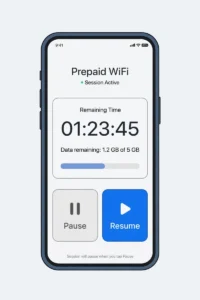
To resume, return to http://10.0.0.1 on the same device and tap Resume Time, Resume, or Continue. The label depends on the platform. The countdown should restart from the point where you paused it.
Resume on the original device for one reason: session matching. Most Piso WiFi systems store a session record that includes a session ID, the device IP address or MAC address, and the time remaining. A MAC address is the hardware identifier of your device network adapter. When you press Resume, the system looks for the session that matches that device. If you switch devices, it may not find it, and the remaining time can be lost.
Two phone settings cause the most resume failures. First, a private WiFi address that changes between connections can make the machine treat the same phone as a new device. On iPhone, this is the Private WiFi Address setting for that network. On Android, it is the MAC address type setting, often set to Randomized MAC by default. Second, a phone that disconnects from WiFi when the screen locks, or that switches back to mobile data, can lose the portal session. Keep WiFi on, stay on the same network, and reopen the portal from the browser rather than from a saved screenshot of the timer.
What Pausing Actually Freezes, and What It Does Not
Pausing freezes the countdown timer and suspends internet access for that session. It does not add extra minutes, it does not refund a payment, and it does not extend the expiry date of a voucher. It also does not pause the machine for other users. Other customers keep using their own sessions normally.
A paused session is not a saved account. There is no customer account to log back into later in the usual case. The record lives in the machine, tied to your device, until you resume or until the admin limit removes it. That is why the same device rule matters, and why a long pause is not the same as a permanent credit.
Pause Rules by Platform
Pause is not one universal feature. Each platform gives the owner a different control, and the owner then sets the limit for that machine. Always check the limit on the machine you are using. The table below is a summary. The sections after it explain each platform in plain English.
| Platform | Pause limit type | Resume rule | After a reboot or disconnect |
|---|---|---|---|
| LPB Piso WiFi | Maximum pause duration, set by the admin. TP-Link guide reports a commonly used default of 60 minutes, configurable from 10 minutes to 24 hours | Resume on the same device before the limit, or the session can expire | Check with the operator after a reboot, because a local session does not always survive. Do not assume paused time is saved |
| AdoPiSoft | Maximum number of pauses per session, set by the admin. No universal default count is stated in this guide, because published guides disagree | Resume on the same device. A short pause still uses one pause from the count | Auto continue after a reboot is reported for some AdoPiSoft setups. Verify on your machine, because builds differ |
| PisoFi | Maximum pause time and pause validity, set by the admin, with pause on disconnect options in its official feature list | Resume on the same device. Live transfer is a separate feature, not a substitute for resume | Cloud sync is listed in PisoFi official features, so reboot survival is reported as stronger than a purely local session. Verify on your machine |
| JuanFi | Depends on the operator hotspot setup. No single default across builds | Varies by build. Ask the operator how that build handles resume | Varies by build. Ask the operator, and test a small session before relying on pause |
| Ruijie and SmartFi | Reported auto pause on disconnect, with resume on reconnect, from recent platform updates | Resume on reconnect, where enabled. A brief WiFi drop can pause a session without a manual tap | Auto pause is reported shortly after a disconnect, often within 2 to 3 minutes. Check the portal after a reconnect to confirm the timer restarted, because firmware versions differ |
LPB Piso WiFi pause rules
On LPB, the owner sets a maximum pause duration. TP-Link’s pause time guide reports a commonly used default of 60 minutes, configurable from 10 minutes to 24 hours, and notes a separate minimum remaining time setting that can block a pause when too little time is left. Treat that default as a reported starting point, not as a promise for every machine. The owner of the machine in front of you may have set a shorter limit, and the portal will not always show that limit before you pause. If you need to leave for a long break, pause early and resume before the limit, and ask the operator what limit that machine uses.
LPB also allows separate pause toggles for coin mode and voucher mode in many builds. That means a machine can show a Pause button for coin sessions and hide it for voucher sessions, or the reverse. If you see no button, check whether you paid by coin or by voucher, and ask the owner which mode has pause enabled.
AdoPiSoft pause rules
On AdoPiSoft, the owner sets how many times a session can be paused. This is a count, not only a duration. A short pause still uses one pause attempt. That makes short, repeated pauses expensive on AdoPiSoft machines. If you only need one break, pause once and stay paused until you are ready to browse again, rather than pausing and resuming several times for a few minutes each time.
Published guides disagree on the exact default count, with some reporting 10, while recent operator reports give 3 to 5 attempts per session, and others recommend 3 to 5 as a sensible admin setting. Because of that disagreement, this guide does not state a universal AdoPiSoft default. The count that matters is the one set in the admin panel of the machine you are using, so check that setting before you promise a pause count to customers. Auto expiry is commonly 24 hours in operator reports, but it is operator configurable, so an unresumed session on one machine may expire sooner or later than on another machine. If you are an owner, set the count in the session controls and test it as a customer before you advertise pause to users.
PisoFi pause rules
PisoFi’s official feature list includes pause controls with a maximum pause time, a pause validity setting, and options to pause users when they disconnect and to resume users when they reconnect. It also lists live transfer of time between users on some setups. Transfer is not the same as pause. Transfer moves remaining time to another user or device. Pause holds time on the same device. Do not use transfer as a workaround for a lost paused session unless the operator confirms that the machine supports it and that your session is still listed.
PisoFi also lists separate WiFi and desktop pause controls for computer shop setups. If you are using a desktop timer in a shop, the pause behaviour may differ from the WiFi portal on the same system. Ask the shop operator which timer you are on.
JuanFi pause rules
JuanFi is open source and built around MikroTik hardware. There is no single company default for pause, because each operator configures the hotspot script. Some builds support pause well. Some builds do not show a pause button at all. If you use a JuanFi machine, ask the operator directly how pause works on that build, what the limit is, and whether a voucher session behaves differently from a coin session.
Ruijie and SmartFi pause behaviour
Recent Ruijie and SmartFi updates reported in operator communities describe auto pause shortly after a disconnect, often within 2 to 3 minutes, with resume on reconnect, plus a live coin counter on the portal. That is a different experience from a manual Pause button. The user does not need to remember to tap Pause. The risk is the opposite: a brief WiFi drop can pause a session unexpectedly, and a user who does not know about auto pause may think the machine stopped working. If you use a Ruijie or SmartFi machine, check whether auto pause is enabled, and check the portal after a reconnect to confirm that the timer restarted.
Pause Limits, Auto Expiry, and Nightly Resets
Three different limits can end a paused session. Do not confuse them.
Maximum pause duration
This is how long one pause can last. On LPB, it is the main limit. On other platforms, it may be combined with a pause validity period, which is how long the paused record is kept before it is cleared.
Auto expiry of abandoned sessions
This is how long the machine keeps a paused session before it cancels it. Many operators set this to 24 hours, which is a commonly reported setting, not a law. After auto expiry, the remaining time is lost and a new payment is needed. If you pause at night and plan to resume the next day, resume as early as you can, and do not assume that a pause will survive until the next evening.
Nightly resets and maintenance
Some operators restart machines, update firmware, or clear sessions overnight. A nightly reset is an operator choice, not a feature of every platform. If a machine is regularly restarted at night, paused sessions from the day before may not survive. Ask the operator if you plan to pause overnight. As an owner, tell customers on a sign near the machine if you restart nightly, so they do not pause late and lose time.
How Owners Enable Pause Time
Owners control pause in the admin panel at http://10.0.0.1/admin. Customers cannot enable it. The steps below are general, because menu labels vary by platform and firmware version. Full admin steps, including screenshots of the exact labels for each platform, belong in the Admin Login guide, which is linked at the end of this page. This section gives the owner the decision points, not a copy of that guide.
General admin steps
- Connect to the machine network and open http://10.0.0.1/admin.
- Log in with admin credentials. Default credentials vary by build and must be changed on first login. The homepage lists the commonly reported defaults with the warning to check your own machine.
- Find portal settings or session controls.
- Turn on Pause Time, Pause and Resume, or Allow Pause Time, depending on the label.
- Set the limit for your platform: duration on LPB, count on AdoPiSoft, duration and validity on PisoFi.
- Set the pause toggle separately for coin mode and voucher mode if your platform shows them separately.
- Save, reboot only if prompted, then test as a customer with a small coin payment. Check that the button appears, that the timer stops, and that resume works on the same device.
Platform menu paths reported in TP-Link’s guide
TP-Link’s pause time guide reports these paths, which are useful as a starting point. Verify them on your own build, because firmware updates rename menus.
- LPB: Portal Settings, then Insert Coin Mode, then Pause and Resume Time, then Enable.
- AdoPiSoft: Settings, then User Portal Settings, then Session Controls, then Allow Pause Time.
- JuanFi: varies by build. Look for Pause Time or Session Pause under portal or session settings.
If a path does not match your panel, search the panel for “pause” rather than following an old path blindly. Changing the wrong setting, such as a rate or a WiFi name, while looking for pause can break customer sessions.
Owner settings that make pause fair
Set a pause limit that covers a real break, such as lunch or an errand, without blocking the machine for a full day. Advertise the limit on a sign near the machine. Test pause for both coin and voucher payments. Check the session list after a test pause to confirm that the record stays visible until resume or expiry. If your platform offers pause on disconnect, decide whether you want it on, because it changes the customer experience and the support questions you will get.
Pause on Android Versus iPhone
The pause feature is the same on both systems, but the phone settings that break resume are different.
Android
On Android, check Private DNS and MAC address type for that network. Set Private DNS to Off or Automatic if the portal will not load. If resume keeps failing, check whether the network is using a randomized MAC address. Some Android versions allow a per network choice between Randomized MAC and Phone MAC. Changing that setting after a session has started will not recover a lost session, but setting it before you pay can help on machines that match by MAC address. Keep WiFi on while paused, and do not let a battery saver turn WiFi off during a long pause.
iPhone
On iPhone, check Private WiFi Address for that network in WiFi settings. If it is on, the phone uses a private address for that network, which is good for privacy but can complicate MAC matching on some machines. Do not change the setting mid session and expect the old session to return. If resume fails repeatedly on one machine, note the setting and ask the operator whether that machine matches by MAC address or by IP address. Also check that the phone has not switched to mobile data while the screen was locked. Opening the portal again on WiFi is the correct first step.
Pause Without a Pause Button
If a machine has no Pause button, do not try to force one. There is no safe customer side hack for pause, and this guide does not provide bypass instructions. Three lawful options remain.
First, use a voucher code if the machine supports it, and check whether the timer starts on redemption rather than on purchase. On many systems, a voucher bought today can be redeemed later, which gives you control over when the timer starts. Confirm this with the operator before you buy a large voucher.
Second, pay in smaller amounts. A small payment limits the loss if you have to leave suddenly. This is less convenient, but it is the most reliable option on a machine without pause.
Third, ask the operator to pause the session from the admin panel. On PisoFi and some other platforms, an admin can pause a client session from the client list. The operator may or may not agree, and it is not a customer right. It is a request, and it depends on whether the operator is present and whether the session is still listed.
Power Cut or Reboot While Paused
A power cut is the hardest pause case, because the answer depends on where the session record is stored.
On a purely local system, a reboot can clear sessions that were stored in memory. A paused session that was not yet saved to disk may be gone when the machine restarts. On a cloud connected system, the session record may survive a reboot, because it is stored outside the machine, but the portal may still need a fresh connection and a resume tap. Firmware version, storage type, and operator settings all change the result.
For customers, the practical steps after a power cut are: reconnect to the same network, open http://10.0.0.1 on the same device, and check whether the session or the remaining time is still shown. If it is not shown, tell the operator the amount, the time you paused, and the device you used. Do not pay again until the operator has checked the session list, unless you need internet urgently and accept that the old time may be lost.
For owners, a UPS helps with short power cuts, and a regular backup helps with settings, but neither guarantees that a paused session survives every reboot. Tell customers plainly what happens after a reboot on your machine, rather than promising that paused time is always safe.
Pause Problems, With Deeper Fixes
The homepage lists quick fixes. This section gives the deeper checks for pause only. General portal, coin, and speed problems are in the Troubleshooting guide, not repeated here.
| Problem | Deeper check | What to do next |
|---|---|---|
| Pause button never appears | Coin mode enabled, voucher mode disabled, or the reverse | Ask the operator which payment mode has pause enabled, and test the other mode with a small payment if you can |
| Button appears, then vanishes mid session | Pause limit reached, session expired, or a new session replaced the old one | Check the portal timer and session list. A new payment can create a new session and hide the old one |
| Pause confirmed, but timer kept counting | Cached portal page, or a second device using the same session | Refresh in an incognito window and check that no other device is using the session |
| Resume shows a new session with no time | Device changed, private address changed, or auto expiry passed | Resume on the original device only. If the time is gone after expiry, a new payment is needed |
| Pause works for coins but not vouchers | Separate toggles in the admin panel | Owner fix only. The owner must enable pause for voucher mode and test it |
| Pause lost after a reboot | Local session storage cleared on restart | Owner should check the session list and consider a UPS and a cloud connected setup for future sessions |
| Auto pause keeps pausing on Ruijie or SmartFi | Short disconnect triggering auto pause | Check WiFi signal strength, stay in range, and ask the operator whether auto pause is enabled |
Frequently Asked Questions About Piso WiFi Pause Time
How long can I pause my Piso WiFi session?
It depends on the machine. On LPB, the owner sets a maximum pause duration, commonly reported as 60 minutes by default, but the owner can change it. On AdoPiSoft, the owner sets a number of pauses per session, not only a duration. On PisoFi, the owner sets a maximum pause time and a pause validity period. Ask the operator for the limit on that machine, and resume before it.
Can I pause more than once in one session?
On LPB, you can usually pause again after resuming, as long as each pause stays within the duration limit and the session has not expired. On AdoPiSoft, each pause uses one of your allowed pauses, so repeated short pauses can use up your allowance quickly. On other platforms, the rule depends on the operator setup. Do not assume that unlimited pauses are allowed.
Does pause time save my data allowance?
Pause stops the timer. If your session is sold by time, pause protects minutes. If your session is sold by data, the data used before the pause stays used, and the remaining data allowance is what matters after resume. Pause does not restore data already used, and it does not stop a data limit from applying once you resume.
Can I transfer a paused session to another phone?
In the usual case, no. Pause holds time on the device that started the session. PisoFi lists live transfer as a feature on some setups, but transfer is a separate action from pause, and it must be supported and enabled by the operator. Do not rely on transfer to move a paused session unless the operator confirms it works on that machine.
What happens if I forget to resume?
The session stays paused until the pause limit or auto expiry removes it. After that point, the remaining time is lost. Set a reminder on your phone when you pause, especially if the limit is short.
Is there a Piso WiFi pause time app?
There is no single official pause app for all platforms. Some third party admin helper apps open the local portal at 10.0.0.1, and some operator apps exist for specific systems, but pause itself is a portal feature, not a separate app download. Do not download an app that promises to unlock pause, extend time, or bypass a limit. Those claims are not part of any official platform feature list checked for this guide.
Can the owner see that I paused?
Yes, in the sense that the admin panel lists client sessions and their status. The owner can see active, paused, and expired sessions as part of managing the machine. Pause is a normal feature, not a hidden action, so there is no need to hide it.
What should I do if my paused time disappeared?
First, reopen http://10.0.0.1 on the original device and check the session list. Second, note the amount paid, the time you paused, and whether there was a power cut or a device change. Third, tell the operator with those details. If the session expired or the machine rebooted and cleared local sessions, the time may not be recoverable, and a new payment will be needed.
What to Read Next
If pause is your main problem, go to the Troubleshooting guide for portal and session fixes that are not covered here. If you need to log in as an owner, go to the Admin Login guide for the full panel steps. If you want to compare pause rules before buying a machine, go to the Platforms Compared guide. If you paid by voucher, go to the Voucher guide for redemption, expiry, and transfer rules. Each of those pages covers its own topic in full, so this page does not repeat their steps.