Starlink Piso WiFi: Setup, Priority Plan, Costs, and Rules
Up: Piso WiFi Business | Also in this category: ISP Choice and Machine Setup
Answer first: Starlink can work for a Piso WiFi machine where wired internet is not available and SIM is unreliable, provided you first check, in writing, that your exact plan allows business use and resale. Priority and community plans are the proper route to check first for shared use; residential resale is a terms risk, and VPN tunnelling is not a compliance method. Before buying, test the sky view, power, latency for the tasks customers actually do, and the total first-year cost.
This post covers Starlink as an internet source for a Piso WiFi machine, in full. The ISP choice post gives a short Starlink summary and links here for satellite specific detail. The Business guide gives a short Starlink summary and links here for the same reason. This post does not repeat general ISP comparison, machine types, or rate strategy, except where a Starlink decision changes them.
Starlink can work for a Piso WiFi machine in a remote location where wired internet is not available and SIM is unreliable. It can also be the wrong choice in a city where fiber is available, cheaper, and more stable for the same customers. Use this post to check plan terms, setup, costs to verify, and operator requests, before you buy equipment.
When Starlink Makes Sense, and When It Does Not
Starlink makes sense when:
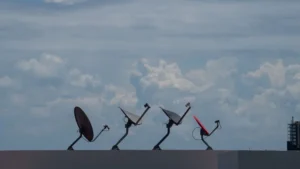
- No wired fiber or reliable SIM service is available at the machine location, or the available wired and SIM options are too slow or too unstable at busy times to serve customers.
- The location has a clear sky view for the satellite dish, stable power, and a safe mounting spot, as described below.
- You have checked current Starlink plan terms for business use and resale, and you have a plan that allows your intended Piso WiFi use, as described in the next section.
- You have tested latency with the tasks your customers actually do, such as video calls and games, not only with basic browsing.
Starlink is less likely to make sense when:
- Fiber is available at the location, with a business plan that allows commercial sharing, at a lower total first year cost.
- The location has no clear sky view, because of tall buildings, dense trees, or a roof that blocks the dish.
- Power is unstable for long periods, with no UPS or backup plan, because satellite equipment needs stable power to stay connected.
- Your main customer need is low latency gaming or video calls, and your tests show latency problems that customers will notice, even if basic browsing works.
Test the location, the sky view, and the customer tasks before you buy, rather than buying equipment first and testing later.
Priority Plan and Resale Rule: Check Current Terms, Do Not Assume
This is the most important Starlink check, and it is also the check that changes most often. Starlink plan names, business use rules, and resale rules change over time, and they differ by plan and by country. Do not assume that any Starlink plan can be resold as a Piso WiFi business, and do not rely on an old article for current terms.
What to check, in writing, before you buy
Ask Starlink, through its official site and official support channels, these questions for the exact plan you are considering:
- Does this plan allow business use for a Piso WiFi machine selling timed sessions to customers, or is it for personal use only?
- Does this plan allow resale or commercial sharing of the connection, or does resale require a different plan, such as a Priority plan or a business plan?
- What is the difference, in the current terms, between a residential plan, a Priority plan, and any business plan offered at the time you check, for hotspot or Piso WiFi use?
- What happens if a plan is used for resale when resale is not allowed: warning, suspension, termination, or a required plan change?
- Can you change plans later, from residential to Priority or business, and what are the fees, notice periods, and equipment changes for that change?
Keep the written answers, with the date you checked them, with your business records. A plan that allows Piso WiFi use today may have different terms next year, and a plan that does not allow it today may not be fixed by a later upgrade unless you actually change plans.
Why the Priority plan is often discussed
Operators often discuss a Priority plan for Starlink Piso WiFi, because Priority plans are generally positioned for business and priority service, with different terms from residential plans. That discussion does not mean every Priority plan automatically allows every Piso WiFi use, in every location, without further checks. It means Priority is the plan family to check first when you ask about business use and resale, and to compare against residential terms for your exact use.
If the current terms for the plan you can buy do not allow Piso WiFi resale, do not proceed on the basis that other operators are doing it anyway. Other operators may be on a different plan, in a different location, or under different terms, or they may be taking a risk you should not copy without understanding it.
Setup Overview: Dish, Power, Network, and Machine
Starlink setup for Piso WiFi follows the same order as any ISP setup, with satellite specific steps added for dish placement and power. Full admin steps are in the Admin Login guide, and full machine setup order is in the machine setup post. This section gives the Starlink specific setup order, not a copy of those guides.
Setup order
- Check sky view: use the Starlink app or official guidance to check for obstructions at the dish location, including trees, buildings, and roofs. A dish with a blocked view will drop connection, even if it works on a clear day.
- Mount safely: mount the dish securely, with weather protection, a safe cable run, and no walkway hazard. Keep the dish out of easy reach for theft or accidental movement, and check the mount after storms.
- Power check: check power supply rating for the dish, router, vendo machine, and access point together, and test with a UPS if you use one. Satellite equipment plus a vendo machine can draw more power than a vendo machine alone, so do not assume an existing UPS is sufficient.
- Network check: connect a laptop directly to the Starlink network and browse, then test video calls and games if those are customer tasks, at different times of day.
- Machine connection: connect the vendo machine network to the Starlink network, following your machine supplier guidance, and check that the portal loads on a phone joined to the machine network.
- Customer test: test as a customer with a small coin payment, a voucher code if offered, and a pause test if pause is enabled, from each customer seat, as described in the machine setup post.
- Sign and records: update the sign only if WiFi name or rates change, and file the Starlink plan terms, equipment receipt, and test results with your business records.
Latency, weather, and power: what to test
Satellite latency is higher than fiber latency in general, because the signal travels to a satellite and back. That matters more for video calls and games than for basic browsing, messages, or email. Test with the tasks your customers actually do, at busy times, and note whether calls freeze, games lag, or videos buffer in a way customers will complain about.
Weather can affect satellite signal, especially heavy rain and storms, and a dish that moves in wind will drop connection. Test after a storm, check the mount regularly, and plan a customer message for outage periods, such as a sign explaining that the machine will resume when the satellite connection returns, rather than taking payments during an outage you know about.
Power cuts affect Starlink and the vendo machine together. A short UPS can bridge a short cut, but a long cut will stop both. Plan a pause and reboot policy for power cuts, as described in the Troubleshooting guide, and do not take payments during a known outage if sessions cannot be delivered.
Costs: Ranges to Verify, Not Figures to Trust From Old Posts
This post does not quote a fixed Starlink equipment price or monthly price as fact, because equipment and monthly prices change, differ by plan, and differ by location and promotion at the time of purchase. Use this cost checklist with real Starlink quotes at the time you plan to buy.
| Cost line | What to verify at the time you check |
|---|---|
| Equipment, dish and router | Equipment price, what is included, delivery cost, and whether any hardware is rented or owned |
| Monthly plan cost | Monthly cost for the exact plan that allows your Piso WiFi use, not for a cheaper plan that does not allow it |
| Priority data or service cost, if any | Whether Priority data, business service, or a higher tier adds cost, and how that cost is calculated |
| Installation and mounting | Installation cost, mounting hardware cost, and cable run cost, if not included |
| Power and UPS cost | Power supply and UPS cost for dish plus machine, if a new or larger UPS is needed |
| Maintenance reserve | Reserve for dish, mount, cable, and router replacement or repair, based on supplier prices at the time you check |
| Total first year cost | Equipment plus monthly cost multiplied by 12 plus installation, power, and maintenance reserve, with the date of each quote |
Compare that total first year cost with a fiber or SIM total first year cost for the same location, using the ISP choice post worksheet. A Starlink plan that looks affordable on monthly cost alone can be more expensive in total once equipment, mounting, and power are added. A Starlink plan that looks expensive can still be the right choice in a remote location where no other source works, but that decision should be based on total cost and tested service, not on monthly cost alone.
Anti Stow and Hybrid Requests: Operator Requests, Not Promised Features
Operators sometimes ask for features such as anti stow, hybrid setups, or other Starlink related functions for Piso WiFi use. Anti stow, in operator discussions, generally refers to requests to prevent unauthorised use, sharing, or bypass of a paid session, and hybrid setups generally refer to combining Starlink with another source, such as fiber or SIM, for backup or load sharing.
Treat those requests as operator requests to check, not as promised features. Before you rely on an anti stow or hybrid feature, check:
- Whether the feature exists in the current Starlink plan, platform version, or machine software you will actually use, or whether it is a request to a supplier or platform developer.
- Whether the feature is documented in official Starlink or platform guidance, or only in operator forum posts and social media discussions.
- What the feature actually does, in plain terms, and whether it affects legitimate customers, such as a customer moving seats, pausing, or resuming on the same device.
- Whether a hybrid setup needs special router, failover, or load sharing configuration, and whether your supplier supports that configuration for your platform version.
- What happens if the requested feature is not available: can you still run the machine safely, with clear rates, pause rules, and customer help, without it?
Do not promise customers, partners, or investors an anti stow or hybrid feature that you have not verified in current official guidance or in a tested setup. Do not buy equipment on the basis of a requested feature alone. Buy on the basis of tested plan permission, tested service, and total first year cost, and treat a future feature as a future upgrade, not as a current capability.
Anti stow and uptime requests, explained in practical terms
Starlink anti stow is folded into this post, not given a separate post, because a separate anti stow post would repeat the section above and the setup, plan, and risk sections of this post, without a distinct, verified feature to explain. What follows is the practical part operators actually need: how to separate a request from a confirmed feature, and how to plan uptime without assuming a feature exists.
In operator discussions, anti stow requests appear alongside other Starlink related requests, such as hybrid setups and uptime improvements for remote machines. The requests are not, by themselves, proof that a feature called anti stow exists on your plan, your dish, your platform version, or your machine software, or proof of what it does if it does exist. A request can mean different things in different discussions, including a dish setting, a platform feature, a supplier request, or a general wish for better uptime, and those meanings must not be mixed together in a purchase decision.
Before you rely on any anti stow or uptime feature, ask, in writing, from Starlink or from your supplier, as applicable: does the feature exist for your exact plan and hardware, what does it do in plain terms, does it affect legitimate customers, such as a customer moving seats or pausing and resuming, and what happens if the feature is not available? If the answer is that the feature is a request, a future update, or a supplier wish list item, treat it as a future upgrade, not as a current capability, and do not promise it to customers, partners, or investors.
For uptime planning without assuming an anti stow feature, plan the parts you can control and test: a fixed, stable mount where permitted, protection from wind, rain, and theft where relevant, power planning for the dish, router, and machine together, as explained in the Power Backup and UPS post, a clear offline sign when the machine cannot sell time, and a routine for checking dish, router, and machine status after an outage. Test failover and recovery as a customer, with small payments, if you run a hybrid source setup, and record what actually happened, rather than what a requested feature was supposed to do.
Uptime checklist for a Starlink backed machine
Use this checklist when you set up or review a Starlink backed machine, and keep the answers with your setup record.
- Plan permission: current Starlink plan terms checked in writing for the intended shared use, including any priority or community plan requirement, with no assumption from a forum post.
- Mount and placement: fixed mount, clear sky view where required, and protection from weather and theft, checked against the dish manual and your site.
- Power: dish, router, and machine power planned together, with a tested outage behaviour, as explained in the Power Backup and UPS post.
- Monitoring: who checks dish, router, and machine status, how often, and what record is kept when a machine goes offline.
- Customer communication: a clear offline sign and a clear help step when the machine cannot sell time, rather than a portal that looks online but cannot complete a payment.
- No promised feature: no anti stow, hybrid, or uptime feature promised to customers or partners unless it has been verified for your exact plan, hardware, and platform version, and tested on your setup.
Starlink and Piso WiFi Risks to Plan For
Plan for these Starlink specific risks in writing, before you invest, in addition to the general business risks in the Business guide:
- Plan terms change, and a plan that allows Piso WiFi use today may change terms later, requiring a plan change or a different source.
- Dish obstruction grows, as trees grow, buildings are built, or a mount shifts, causing drops that were not present at installation.
- Weather and power outages stop both Starlink and the machine together, causing customer complaints if payments are taken during a known outage.
- Latency complaints from gamers and video call users, even when browsing works, because satellite latency affects those tasks more.
- Equipment theft or damage outdoors, especially for a dish mounted within easy reach.
- Total cost growth, if Priority data, equipment, mounting, or power costs are higher than a first quote suggested.
What Operator Reports Add, and What Still Needs Checking in Writing
Operator discussions add three points that still need checking against current Starlink terms in writing. First, Priority and community plans are the proper route discussed for shared or community use, while residential plans generally prohibit reselling, and throttling and crackdown for terms violations have been reported. Second, do not use VPN tunneling as a compliance method, because it does not make a prohibited resale permitted. Third, Starlink-backed machines are reported in remote and rural areas where fiber and LTE are weak, including multi-machine setups, but that does not change the need to check the plan terms for your own setup.
Frequently Asked Questions About Starlink Piso WiFi
Can I use a residential Starlink plan for a Piso WiFi business?
Check current Starlink terms for the exact plan you will buy, in writing, before you assume yes. Residential plans and Priority or business plans differ on business use and resale, and terms change over time. If the plan you can buy does not allow Piso WiFi resale, ask what plan does allow it, and what it costs, rather than proceeding on an assumption.
What is the difference between a residential plan and a Priority plan for Piso WiFi?
In general operator discussions, Priority plans are positioned for business and priority service, with different terms from residential plans, but the exact difference for Piso WiFi use depends on current Starlink terms for your location and plan. Compare the current written terms for business use, resale, data, and service, for both plan families, at the time you check, rather than relying on a general description.
How much does Starlink cost for a Piso WiFi machine?
It varies by equipment, plan, installation, mounting, power, and location, and prices change over time. Use the cost checklist in this post with real Starlink quotes at the time you plan to buy, and compare total first year cost with fiber and SIM for the same location. Do not use an old equipment or monthly price from an article without a date as your budget.
Will Starlink work for gaming and video calls on a Piso WiFi machine?
Basic browsing and messages usually work if the connection is stable, but video calls and games are more sensitive to satellite latency. Test with those tasks at the actual location, at busy times, before you promise them to customers, and set per user bandwidth limits and rate expectations around the tested result.
What is anti stow in Starlink Piso WiFi discussions?
Anti stow is an operator request term, discussed in operator forums, for preventing unauthorised use or bypass of a paid session. It is not, in this post, presented as a promised Starlink or platform feature. Check whether any such feature exists in current official guidance or in a tested setup for your platform version, before you rely on it or promise it to customers.
Can I combine Starlink with fiber or SIM as a hybrid setup?
A hybrid setup, combining Starlink with another source for backup or load sharing, is an operator request and a configuration question, not a default feature. Check whether your router, platform, and supplier support failover or load sharing for your versions, test the switch as a customer, and plan what happens if one source fails. Do not advertise a hybrid backup until it has been tested.
What should I do during a Starlink outage?
Do not take payments for sessions you cannot deliver, if you know the connection is down. Put up a clear sign, check the dish and power, and follow the Troubleshooting guide for upstream versus machine diagnosis. After service returns, test as a customer with a small payment before you remove the sign.
What to Read Next
For ISP comparison in summary, go to the ISP choice post. For business costs, location, and permits in summary, go to the Business guide. For machine types and parts in summary, go to the Vendo pillar. For setup order after you choose Starlink, go to the machine setup post. For speed and upstream diagnosis after installation, go to the Troubleshooting guide. For admin settings, go to the Admin Login guide. Each page covers its own topic, so this post does not repeat their ISP, business, machine, or troubleshooting steps.